Post-processing
Post-processing applies optional cleanup steps to the generated rows just before they are merged with your real data. It runs at download time, not during training, so you can try different settings on a finished project without regenerating anything.
There are three ways in:
- from the project list, on a finished project: Postprocess in the row's download menu ("Choose optional cleanup steps and download the merged dataset");
- from the project detail: DATASETS → Post Process Dataset;
- from the Quota Manager's Review step, to clean the quoted selection on its way out (see Quota Manager).
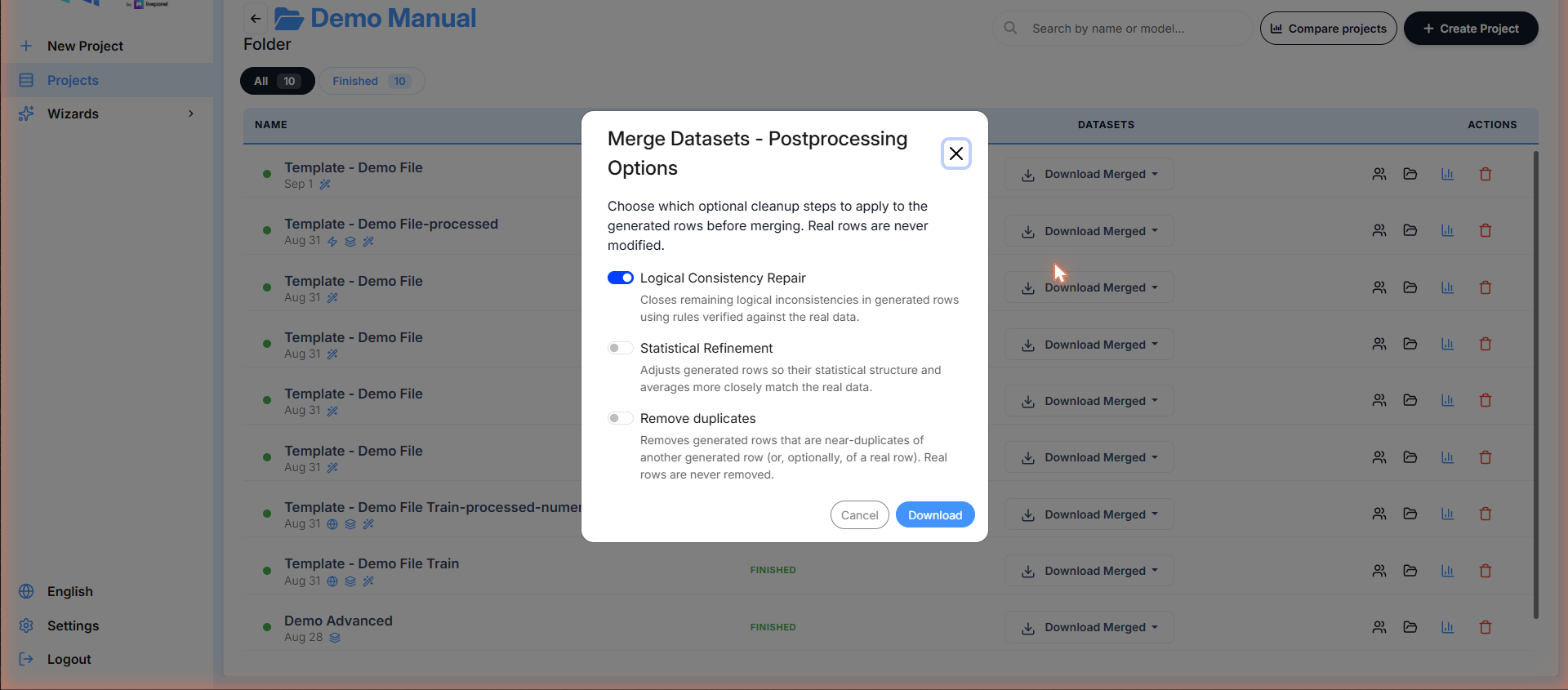
All three open the same dialog, Merge Datasets - Postprocessing Options.
Note
Real rows are never modified and never removed. Every step below only ever touches the synthetic rows.
How the dialog is laid out
The dialog has two panes. On the left, the three stages, each with its own switch:
- Logical Consistency Repair
- Statistical Refinement
- Remove duplicates
Clicking a stage card selects it without turning it on; clicking its switch turns the stage on or off. The right pane shows the parameters of whichever stage is selected. If that stage is switched off, its parameters are greyed out and the pane says "This stage is off. Turn it on to apply these settings."
So: pick the stages you want on the left, tune each one on the right, then download.
Logical Consistency Repair
Closes remaining logical inconsistencies in generated rows, using rules verified against the real data — for example an answer that the questionnaire's skip logic makes impossible for that respondent. It has no parameters: it is either on or off. It also fixes:
- Ranking questions stored one column per item. Each respondent's ranks come out with no ties and run from 1 to the number of items.
- Brand-funnel logic across questions. For example, a respondent who considered brand X must also be aware of brand X. These rules are learned from your real data, not assumed.
In Automatic mode this repair is always on.
Statistical Refinement
Adjusts generated rows so their statistical structure and averages match the real data more closely. Its parameters are grouped into three sections:
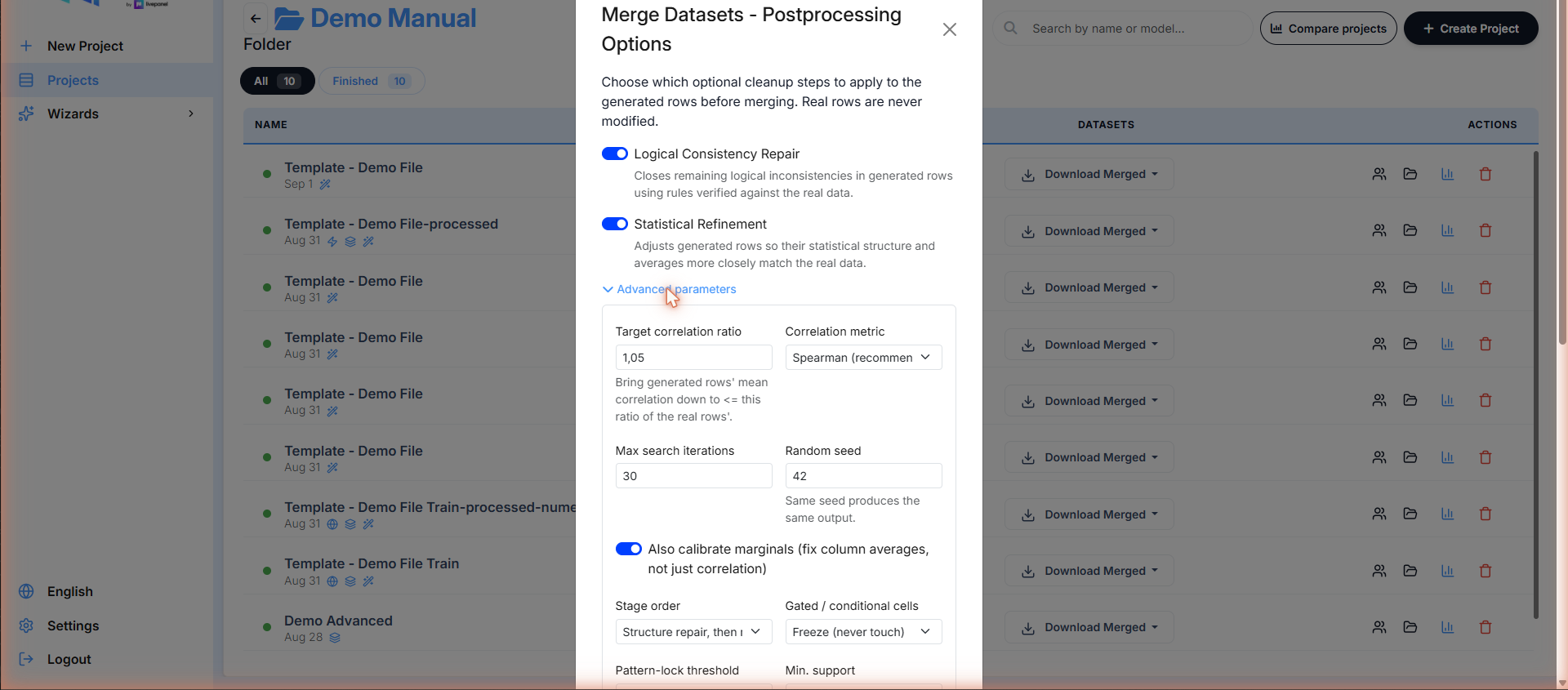
Target
| Parameter | What it controls |
|---|---|
| Target correlation ratio | Brings the generated rows' mean correlation down to at most this ratio of the real rows' (e.g. 1.05 = within 5% of the real structure) |
| Correlation metric | Spearman (recommended) or the alternatives |
| Also calibrate marginals | Fixes column averages too, not just correlation |
Execution
| Parameter | What it controls |
|---|---|
| Max search iterations | How hard the optimiser tries before settling |
| Random seed | Same seed produces the same output — keep it fixed for reproducible deliverables |
| Stage order | Which stage runs first, e.g. Structure repair, then marginals |
| Gated / conditional cells | Freeze (never touch) or Include (calibrate everything) — how to treat cells that only apply to some respondents |
Patterns
| Parameter | What it controls |
|---|---|
| Pattern-lock threshold | The blank-fraction in the real rows that triggers a gated-column lock |
| Min. support | How many real rows a gating pattern needs before it is trusted |
Remove duplicates
Removes generated rows that are near-duplicates of another generated row — or, optionally, of a real row:
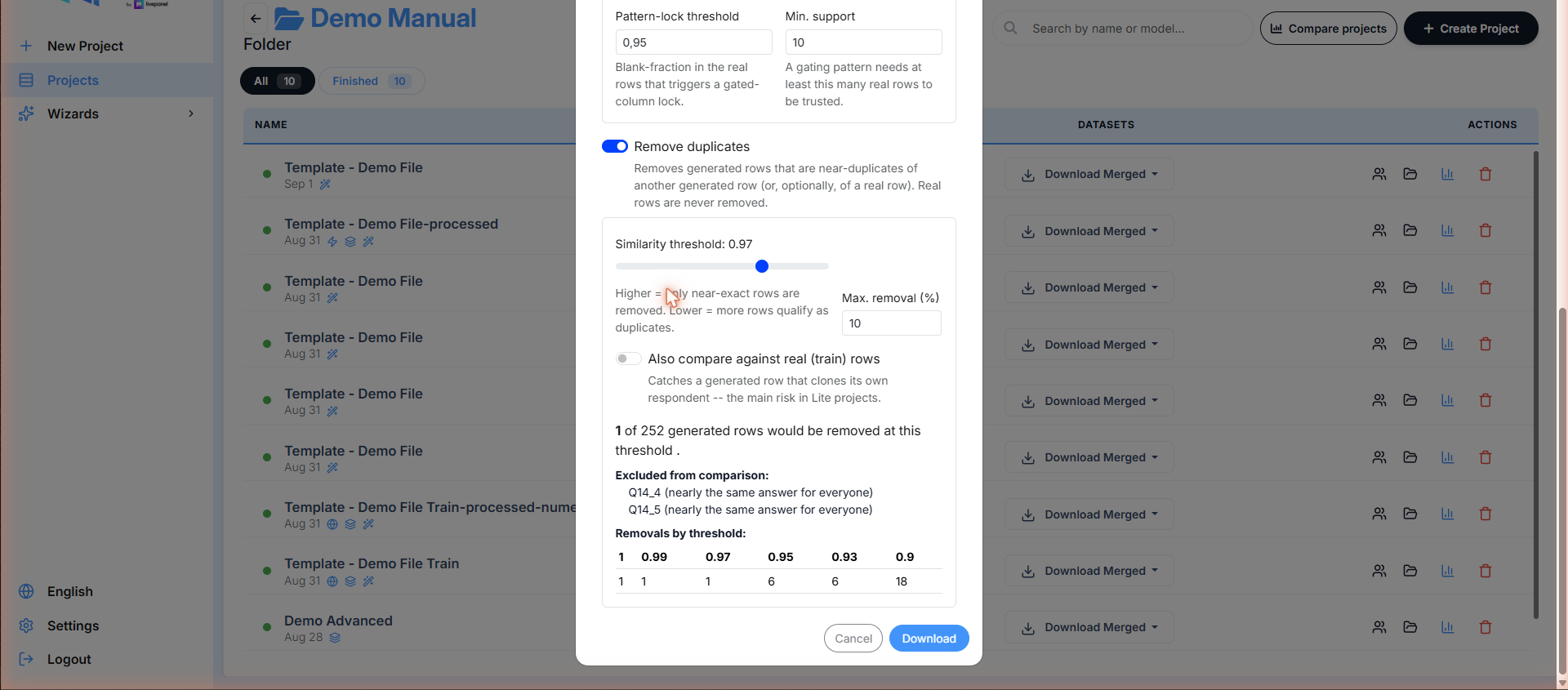
- Similarity threshold — higher means only near-exact rows are removed; lower means more rows qualify as duplicates.
- Max. removal (%) — a ceiling on how much of the sample this step may drop.
- Also compare against real (train) rows — catches a generated row that clones its own respondent. This is the main risk in Lite projects, and the setting to reach for when a client reports "repeated respondents".
The dialog previews the outcome before you download:
- how many of the generated rows would be removed at the current threshold;
- which columns are excluded from the comparison and why (e.g. "nearly the same answer for everyone" — a column where everybody agrees carries no information for spotting duplicates);
- a Removals by threshold table, so you can see how the count moves as you loosen the threshold and pick a setting with evidence instead of by feel.
Download format
Next to the download button, Download format offers two outputs:
- Excel (.xlsx) — the default.
- SPSS (.sav) — "Data only — the report sheets are included in the Excel version." Pick it when the deliverable goes straight into SPSS; take the Excel version when you also want the audit sheets.
Download applies the selected steps and produces the merged file. Large
.sav exports are the slowest to build — the file is prepared in the
background and arrives on its own, see
Waiting, queues and errors.
Post-processing from the Quota Manager
The Quota Manager's Review step carries the same three stages, folded into a collapsible card headed Post-processing (optional) — "Repair, refine or deduplicate the selected rows before download." A badge on the header counts the stages you have enabled.
Two differences from the standalone dialog:
- All three stages start off. The quota result is what you came for; post-processing is an addition to it, not a default.
- Turning Remove duplicates on or off re-runs the quota preview, because removing duplicates changes the pool of rows competing for each cell. The other two stages only apply at download time and leave the preview alone.