Advanced mode: train & predict separately
Use Advanced mode when the data you want to learn from and the sample you want to generate answers for are different files — e.g. train on last wave's full survey and predict the new wave's shorter questionnaire.
1. Upload the two files
In New Project, tick Advanced mode. Two dropzones appear:
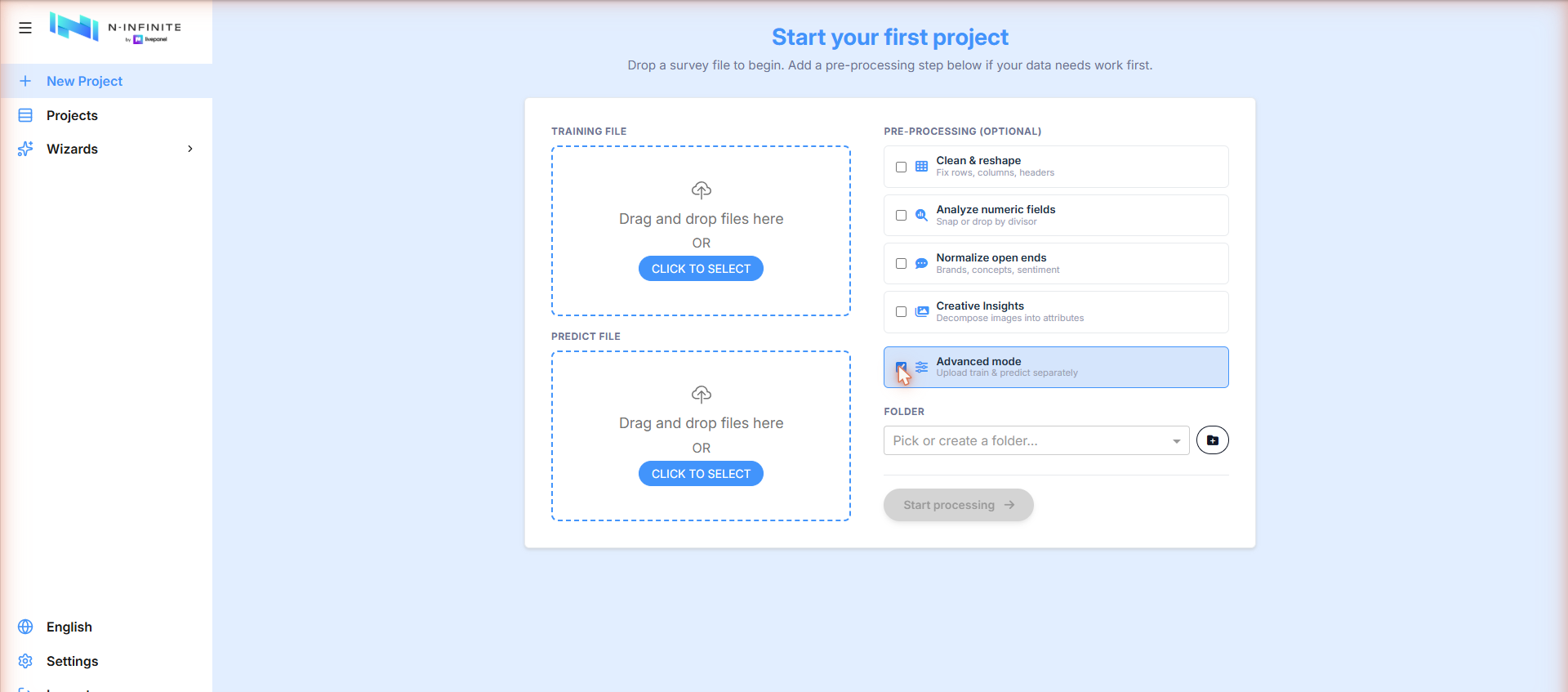
- Training file — the complete dataset the models learn from.
- Predict file — the target sample whose missing questions will be filled with synthetic answers.
The columns the two files share are used to link them; the questions that exist only in the training file are the ones that get predicted.
2. Configure the project
Advanced mode opens a three-step flow (Load files → Configure project → Creating):
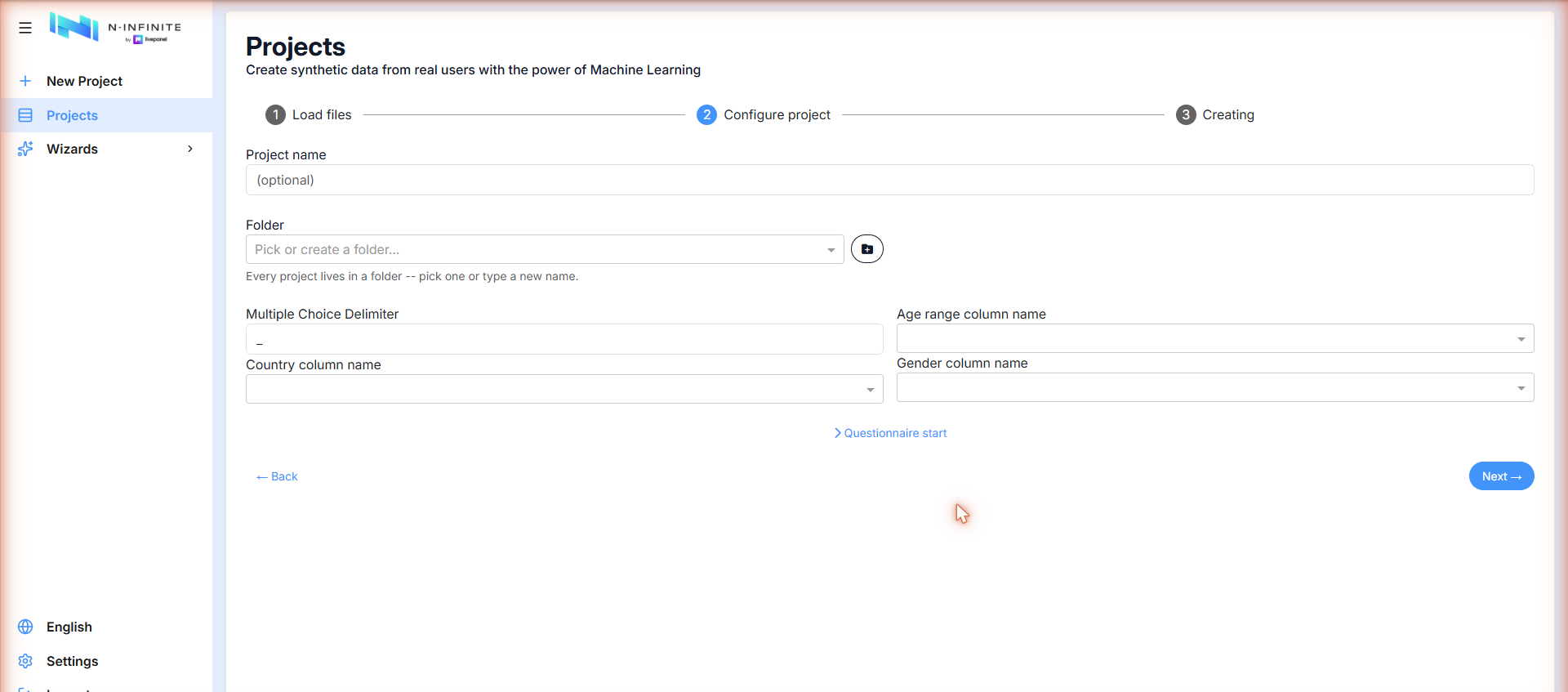
| Field | Meaning |
|---|---|
| Project name | Optional — defaults to the file name |
| Folder | Every project lives in a folder |
| Multiple Choice Delimiter | Character separating multi-select answers (default _) |
| Age range / Country / Gender column | Map your demographic columns so the platform can use them |
| Questionnaire start | Where the questionnaire begins in the file |
Click Next to create the project.
3. Start it manually
Unlike the simple flow, an Advanced project is created in CREATED state and waits for you — press the green play button in the project row when you are ready:
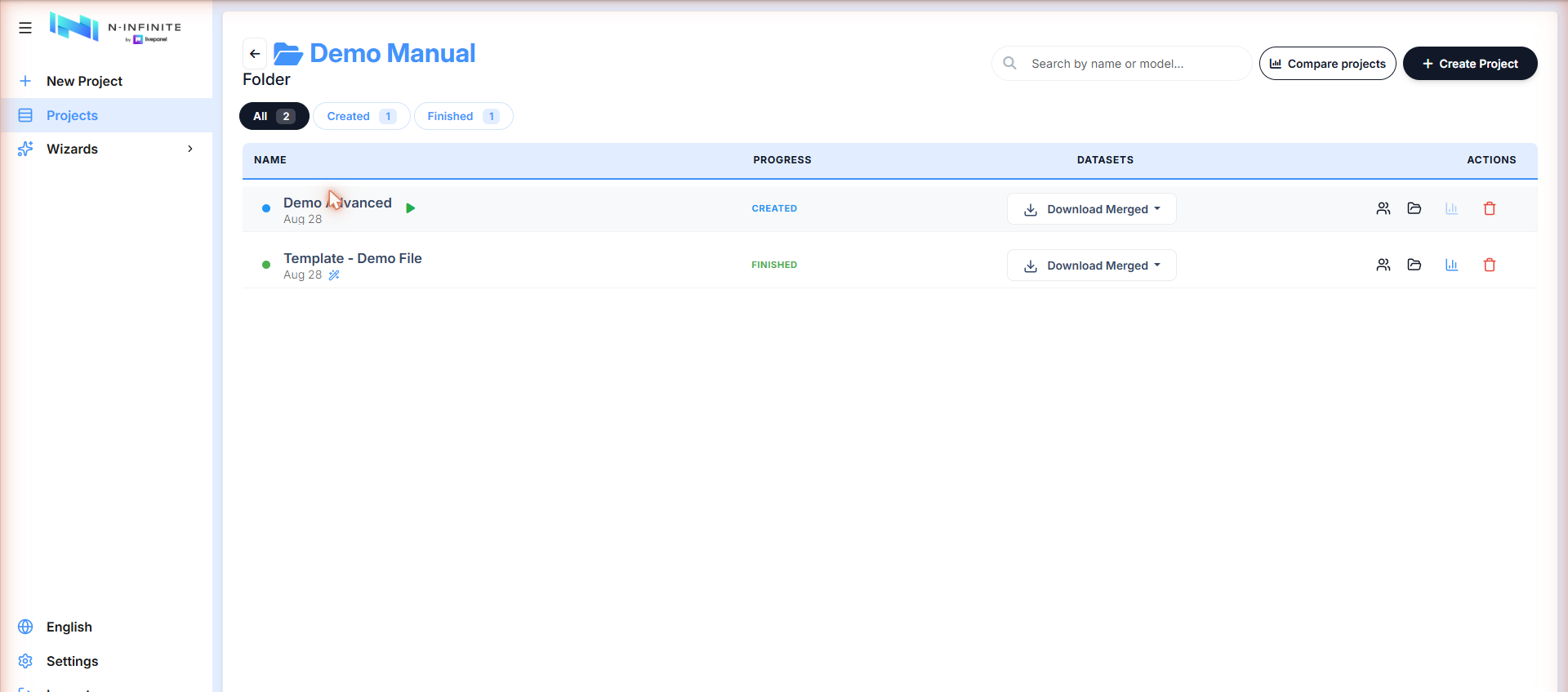
This gives you a chance to review the detected variables and adjust models per question (see Monitoring & results) before spending processing time.