Boost modes: Swift & Express
When files do not contain additional case profiling information, n-Infinite offers two modes designed to amplify cases using solid training profiles or demographic data only.
When an uploaded file qualifies — every row is complete — the configure step offers boost mode automatically (you can always continue with standard mode instead):
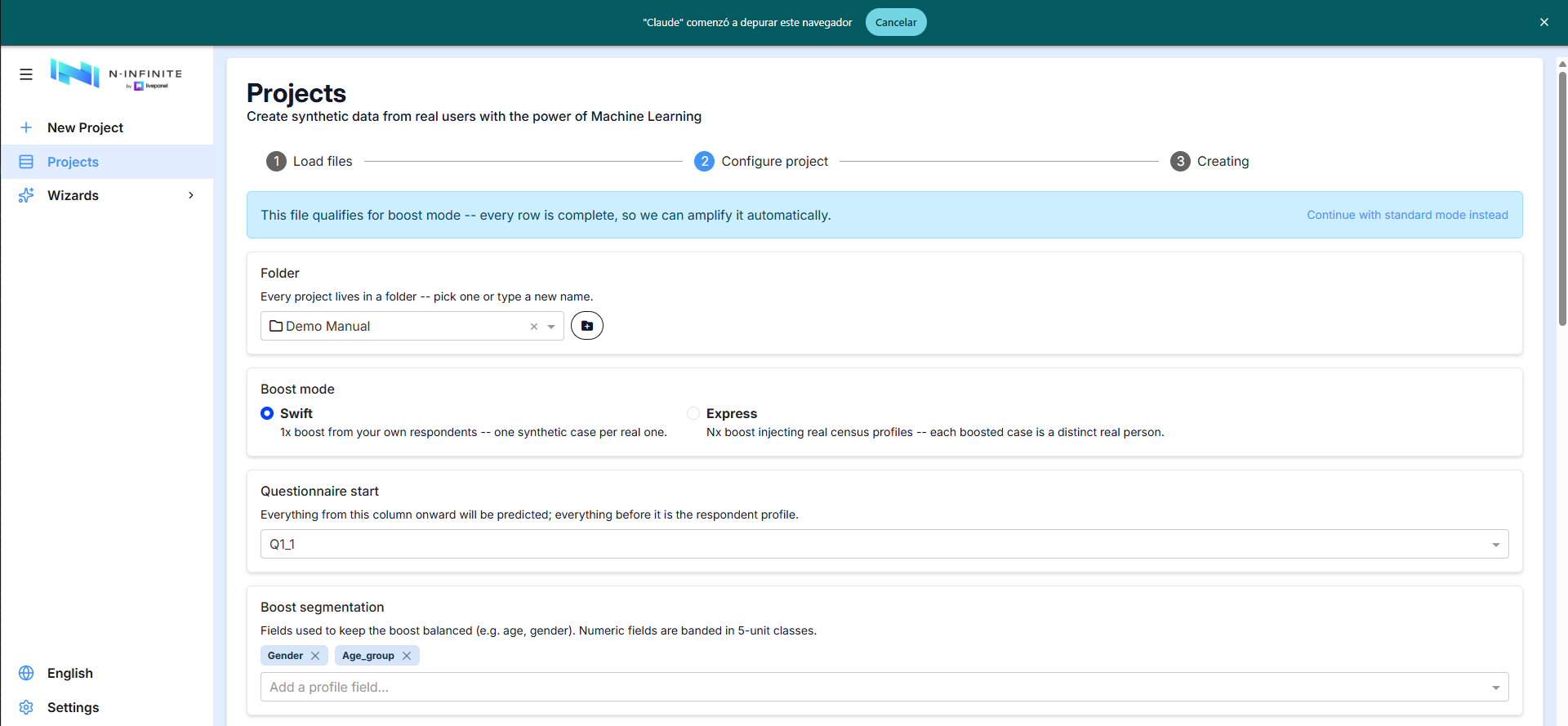
- Swift — 1× boost from your own respondents: one synthetic case per real one.
- Express — N× boost injecting real census profiles: each boosted case is a distinct real person. Requires census countries registered for your organization (ask an admin).
Swift mode
Swift provides amplification up to 100% of cases (typically around 50%) with high-quality source profiling, by duplicating that profiling and re-predicting those cases. It is recommended for B2B projects with a scarcity of prediction profiles.
Because ML training is not absolutely exact for each case — some randomness is involved in the selection of training and validation cases — Swift introduces minor variations that add diversity while maintaining each quota's distribution.
The key selection is the questionnaire start: everything from that column onward is predicted; everything before it is the respondent profile.
Boost segmentation and the boost grid
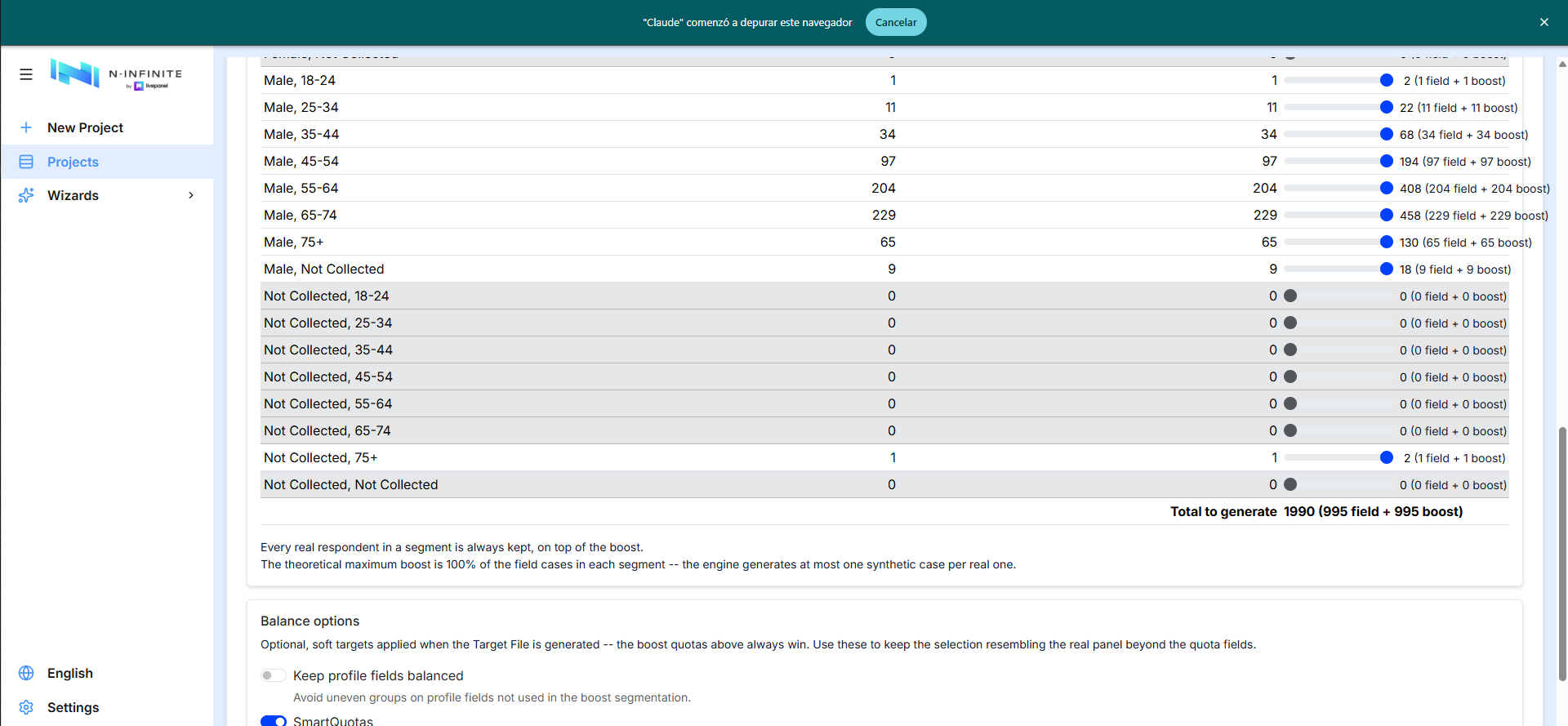
Pick the fields that keep the boost balanced (e.g. gender, age group — numeric fields are banded automatically). The boost grid then shows every segment combination with its field cases and a slider to set how many synthetic cases to add per cell, plus the running total:
Two rules to keep in mind:
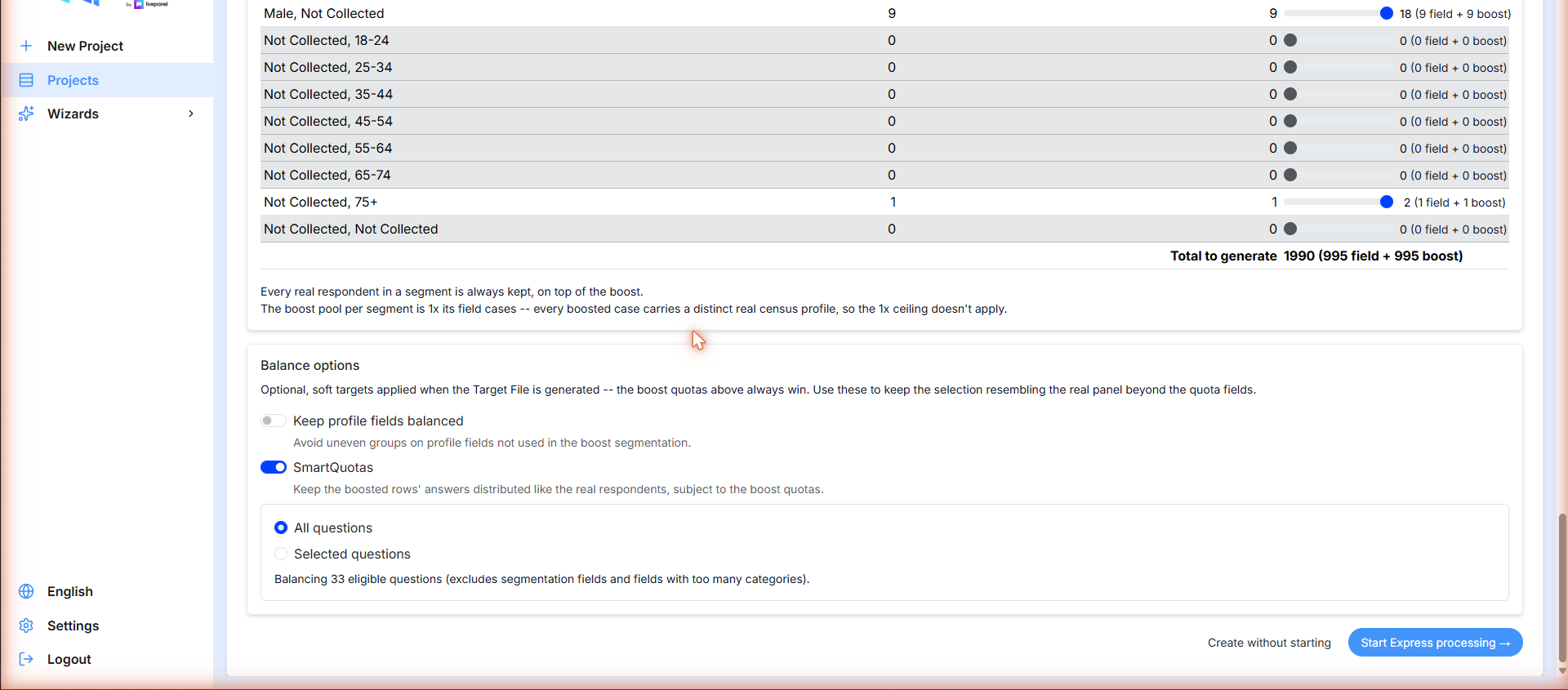
- Every real respondent in a segment is always kept, on top of the boost.
- The theoretical maximum boost is 100% of the field cases in each segment — the engine generates at most one synthetic case per real one.
Balance options & SmartQuotas
Optional soft targets applied when the target file is generated — the boost quotas above always win:
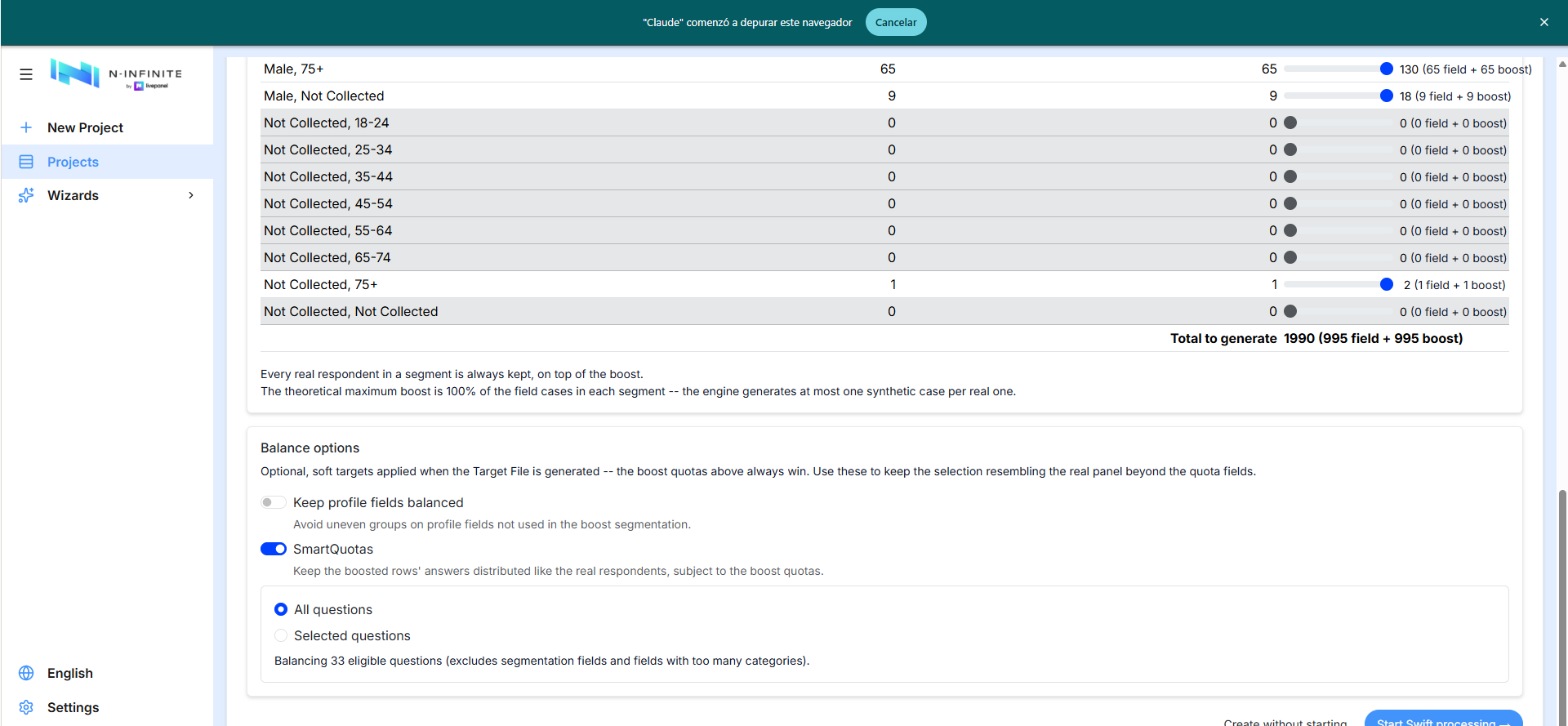
- Keep profile fields balanced — avoids uneven groups on profile fields not used in the boost segmentation.
- SmartQuotas — keeps the boosted rows' answers distributed like the real respondents, subject to the boost quotas. Balance across all questions, or pick the key columns where proportions are critical (segmentation fields and fields with too many categories are excluded automatically).
Finally, Start Swift processing launches the boost immediately, or Create without starting leaves the project in Created state for later.
Boost outputs
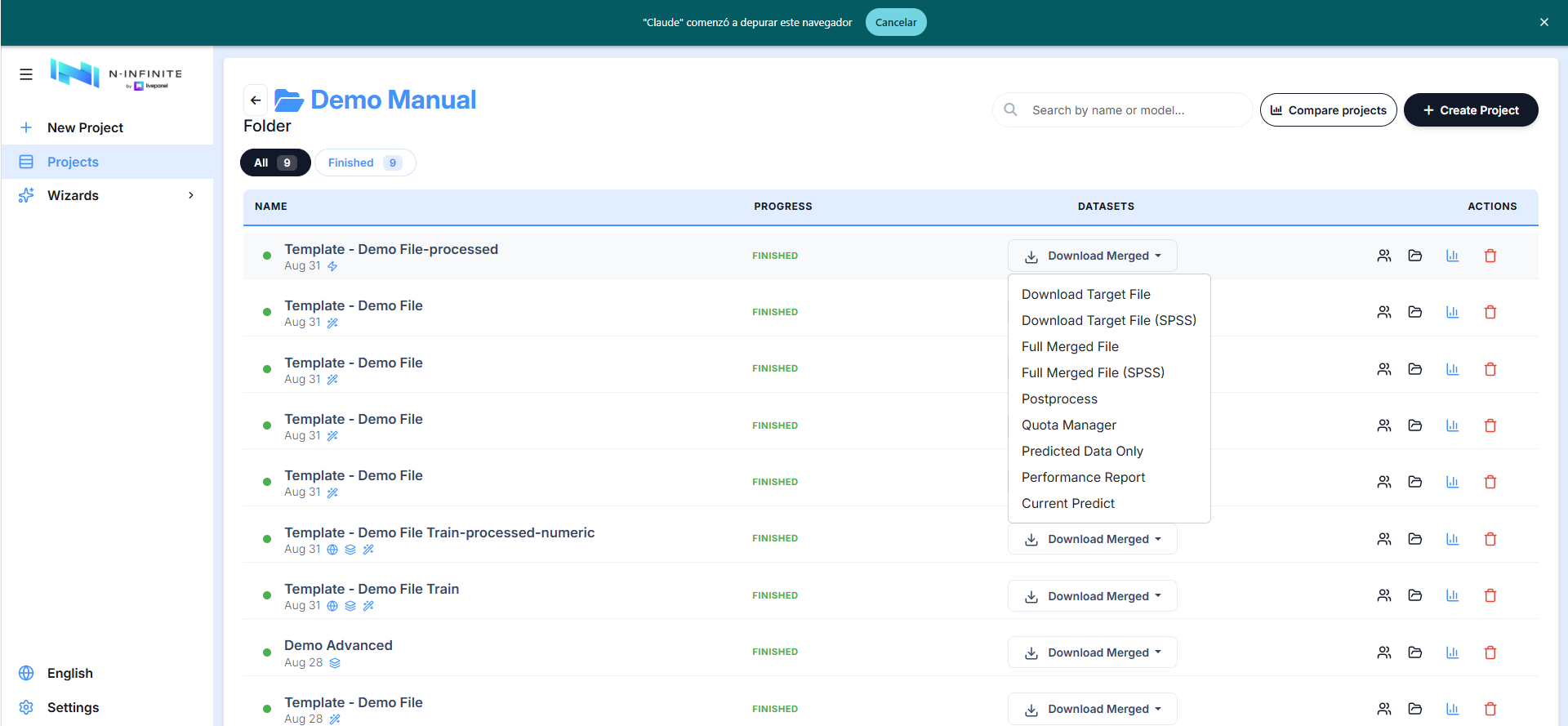
A finished boost project adds dedicated downloads at the top of its Download Merged menu — the Target File (the boosted deliverable) in Excel or SPSS:
Express mode
Express targets large boosts and B2C projects. Unlike Swift — which reuses each case's own profiling — Express injects a distinct real census profile into every boosted case, so each synthetic respondent is modelled on a different real person. Post-weighting is recommended.
Note
Express needs census countries registered for your organization. If the option is disabled with "No census countries registered", contact the n-Infinite team.
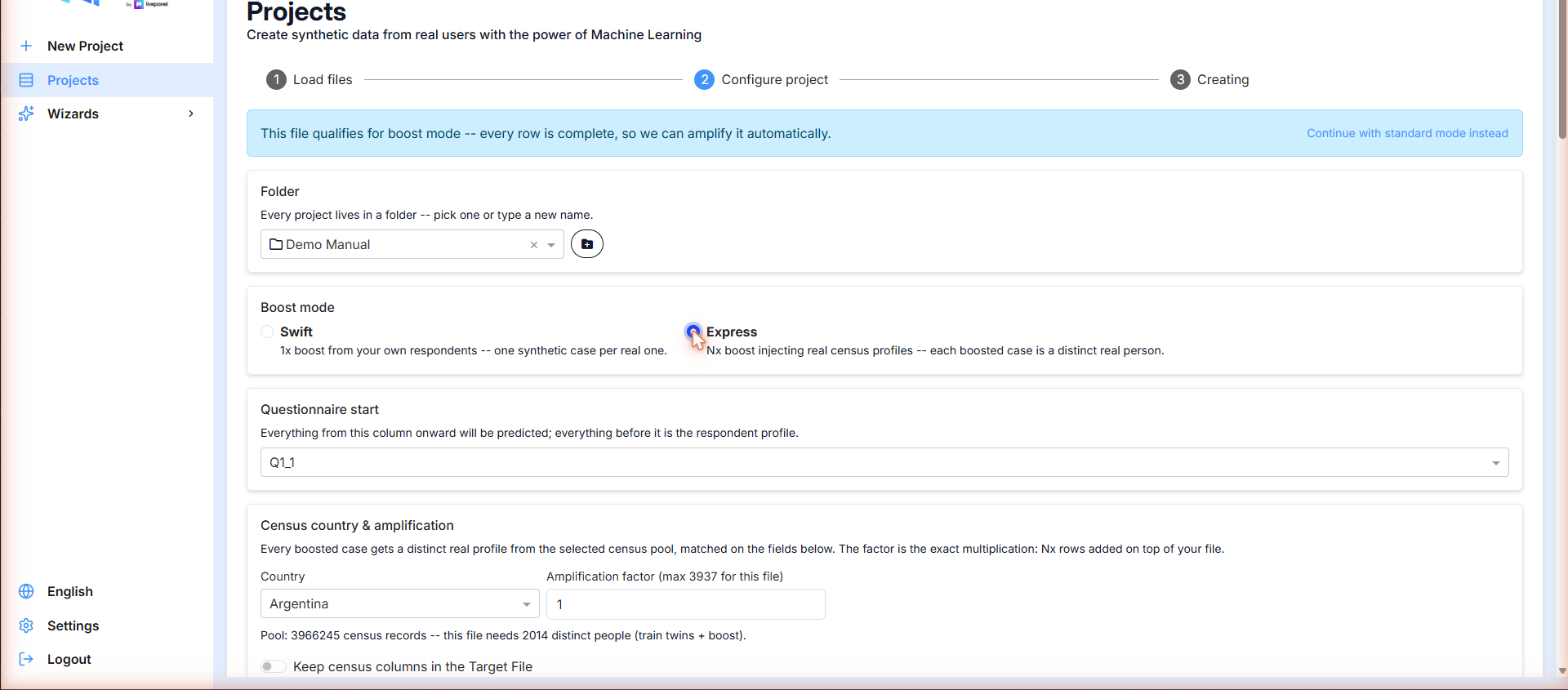
Pick Express in the Boost mode block:
Census country & amplification
Choose the census pool and how much to amplify:
- Country — one of the census pools registered for your organization. The screen reports the pool size and how many distinct people your file needs (train twins + boost) — e.g. a pool of 3,966,245 records for a file that needs 2,014 distinct people.
- Amplification factor — the exact multiplication: N× rows added on top of your file. The maximum is computed per file from the pool (3,937× for the demo file). This is the key difference from Swift, which is capped at 1×.
- Keep census columns in the Target File — off by default: the downloaded Target File strips the injected census block, though the model still trains with it. Turn it on if you want the census fields in the deliverable.
Target quotas instead of a factor
By default you tell Express how much to multiply and read off the result. The switch Set target quotas and derive the factor automatically turns that around: you say how many cases you want per segment, and the server works out the factor itself.
Enter the total you want per segment below. The server computes the multiplication factor itself (with a margin for deduplication) and generates the missing cases with real census data — even for combinations that don't exist in your file.
That last clause is the point: a segment with no real cases in your file is still delivered, built from census records. In factor mode an empty cell stays empty, because there is nothing to multiply.
Turning the switch on hides the Amplification factor, the pool line, the
over-capacity warning, the master Overall % slider and the Max boost
column — none of them mean anything once the factor is derived. In the grid,
Available shows — and Requested becomes a free number with no ceiling.
Total and entry mode
Two controls appear under the switch:
- Total cases to deliver — the size of the final deliverable.
- Quotas entered as — Cases or Percentage of the total. Switching converts whatever you have already typed, so you can start in percentages and check the numbers in cases.
Targets per dimension
Instead of filling an interlocked grid cell by cell, the Targets per dimension card takes one number per bucket of each segmentation field — one per age band, one per gender, and so on. Each row shows its running sum against the expected total.
As soon as every dimension adds up to the same total, the targets are raked into the interlocked grid automatically and the card confirms "Applied to the grid: N total cases." While they don't, it warns "Each dimension must add up to N." — nothing is applied until they agree.
You can still edit any grid cell by hand afterwards. A line under the grid keeps you honest: "The grid adds up to N cases — global target M.", green when they match.
Relax priority
Each dimension has a Relax priority field, empty by default (shown as Protected):
- Left empty — the dimension is matched exactly. Use this for the quota you actually committed to a client.
- A number — the dimension may borrow between its own buckets when a cell falls short. 1 relaxes before 2.
This is what lets an interlocked grid close at all: something has to give when a cell has no candidates, and this says what gives first.
Quota options
Two switches, both on by default, decide what happens at the edges. Both change the row count you receive, so read them before your first delivery:
| Option | On (default) | Off |
|---|---|---|
| Guarantee the full count | Any remaining shortfall is topped up with leftover generated rows that don't belong to the unmet segment, so the total is always delivered | The segment reports a shortfall and the total comes in short |
| Keep every real respondent | No real case is ever dropped — a segment with more real cases than its quota pushes the total above the target | Real cases compete for their segment and the surplus is dropped, landing exactly on the target |
Which combination do you want?
Leave both on when the count must never come in short and a small overshoot is acceptable. Turn Keep every real respondent off when the deliverable has to land on an exact N. Turn Guarantee the full count off when you would rather see an honest shortfall than rows filling a segment they don't belong to.
Census matching
The profile fields used to pick each boosted case's census twin. Pre-filled from the country's saved matches when available, and Suggest with IA proposes the mapping for you:
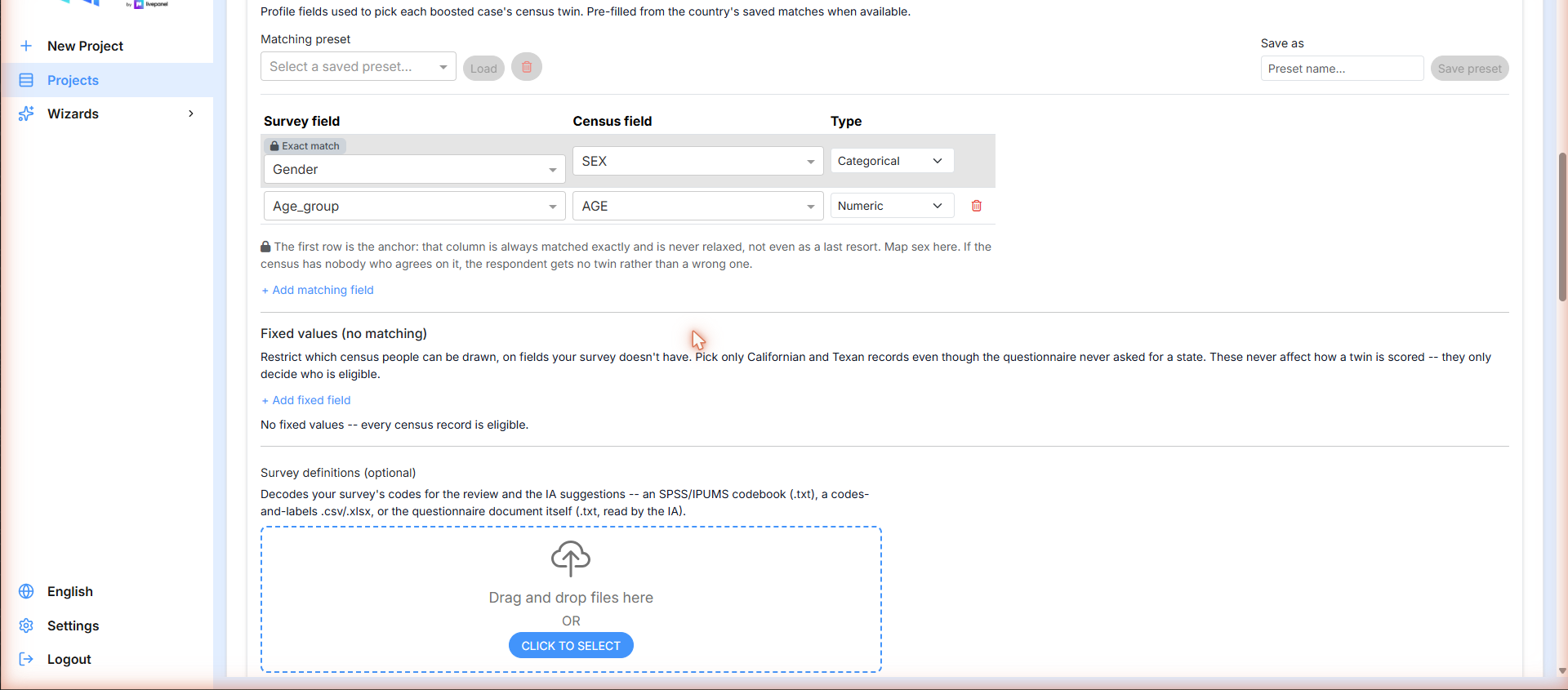
Each row maps a Survey field to a Census field with a Type (Categorical, Numeric, Geographic or Exact):
- The first row is the anchor (locked as Exact match): that column is always matched exactly and is never relaxed, not even as a last resort. Map sex here. If the census has nobody who agrees on it, the respondent gets no twin rather than a wrong one.
- Matching preset — save a mapping under a name and reload it for the next project on the same country.
- Fixed values (no matching) — restrict which census people can be drawn, on fields your survey doesn't have (e.g. only Californian and Texan records even though the questionnaire never asked for a state). These never affect how a twin is scored; they only decide who is eligible.
- Survey definitions (optional) — upload an SPSS/IPUMS codebook
(
.txt), a codes-and-labels.csv/.xlsx, or the questionnaire document itself, so the AI can decode your survey's codes in the review and in its suggestions.
Value matching review
Before starting, review how each survey code pairs with the census codes. Numeric fields (like age) match automatically by distance and need no review; Suggest values with IA fills the rest:
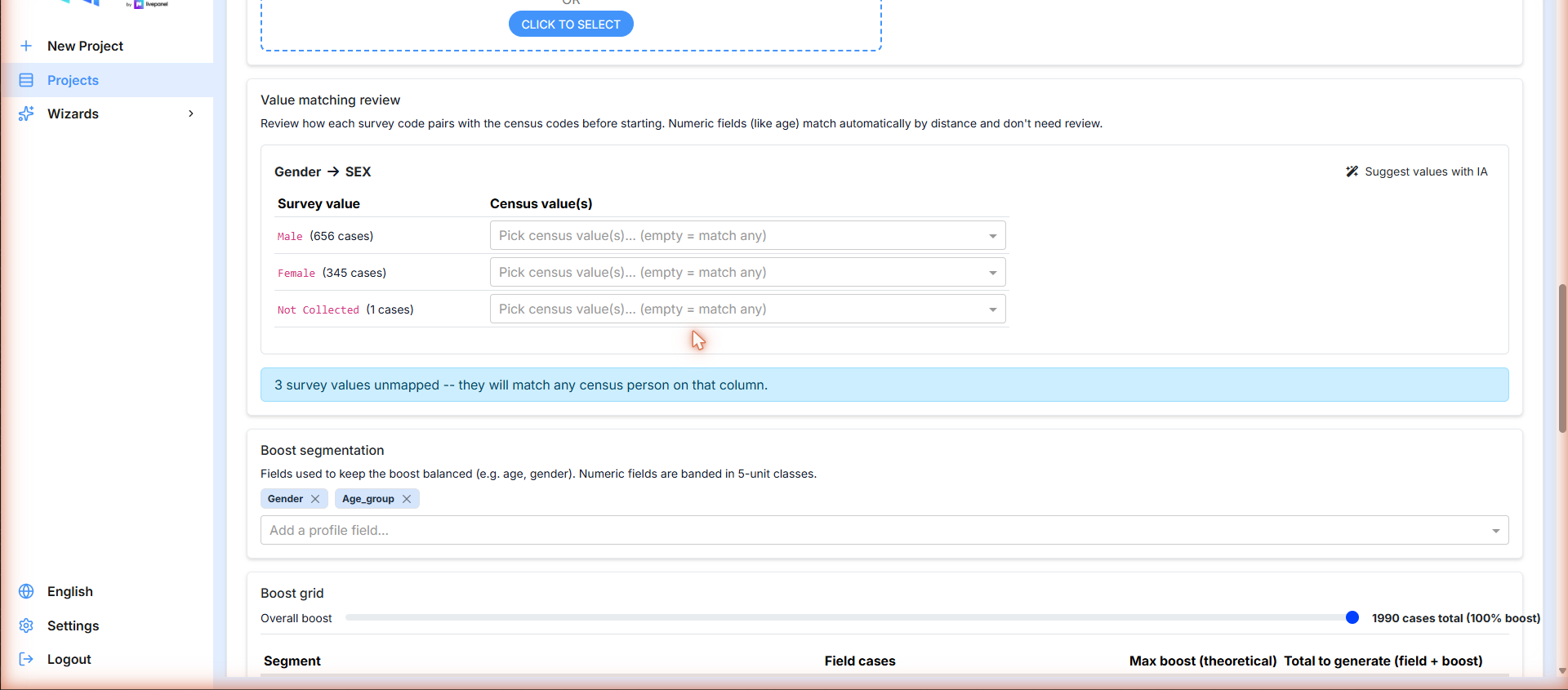
Each survey value shows its case count and the census value(s) it maps to. Leaving a value empty means match any — the screen tells you how many values are unmapped so nothing slips through silently.
Boost grid, balance options and start
Segmentation and the boost grid work as in Swift, with one difference in the ceiling:
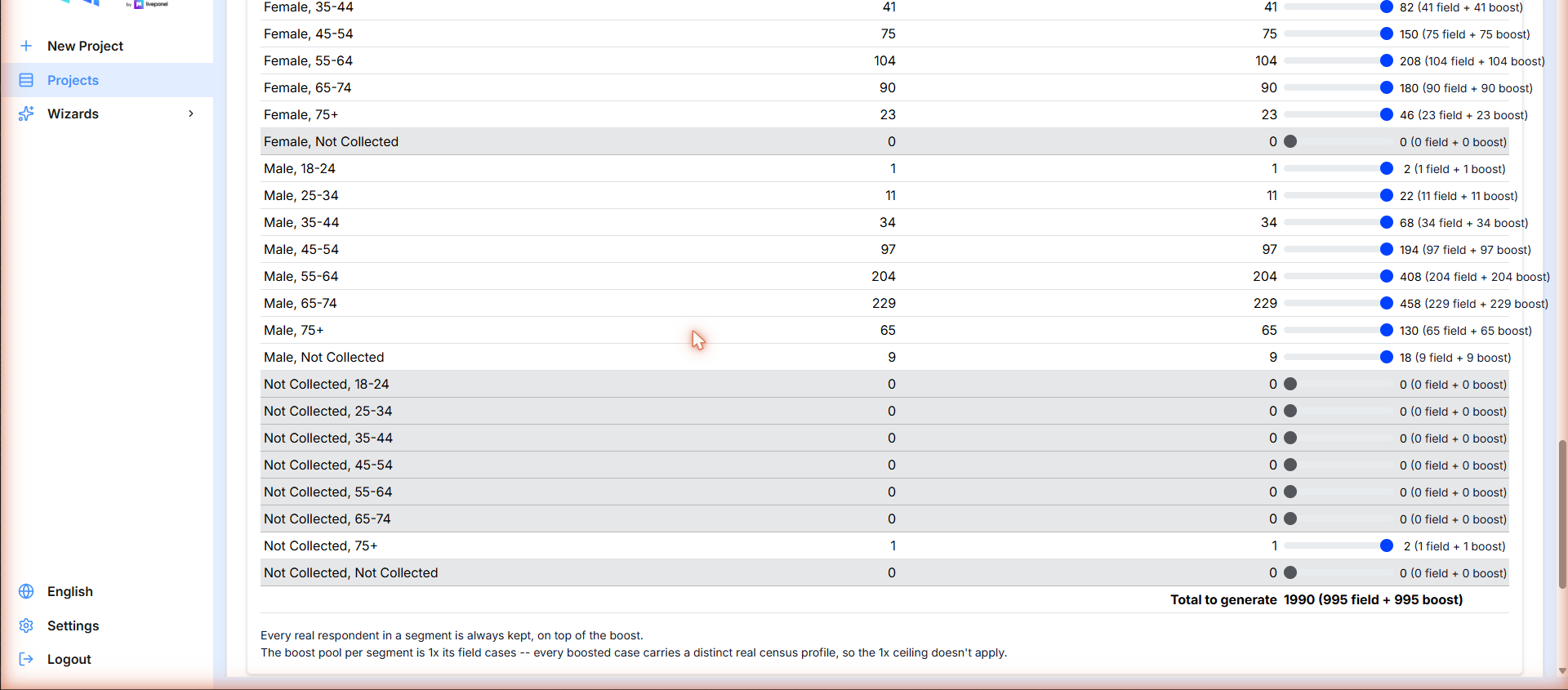
Every real respondent in a segment is always kept, on top of the boost. The boost pool per segment is N× its field cases — every boosted case carries a distinct real census profile, so the 1× ceiling doesn't apply.
In target-quota mode the footer reads differently, because there is no ceiling to state: "The factor is derived from these targets on the server. Segments without enough real cases — including empty ones — are completed with census-based generated rows."
Balance options and SmartQuotas behave exactly as in Swift. Finish with Start Express processing, or Create without starting to leave the project in Created state: